SYUGYOPROSYUGYOPRO
Toolbox

Simple Thumbnail Maker

0 selected

Ctrl+click to select multiple elements. Ctrl+C to copy, Ctrl+V to paste. On mobile, turn on Multiple selection.

Add image frame

Arrange empty frames and save them as a template.

Add speech bubble

Layer order

Top is front

Add images or text with the icons above

Loading

Images are not sent to the server. Edits are autosaved in this browser.

Editing tips

Ctrl+click to select multiple elements; Ctrl+C/V to copy and paste. Resize at the corners and double-tap text to edit it. Text boxes grow when needed. Toggle snapping with the magnet. Select off-canvas elements in Layers and bring them to the center. Drag a grip to reorder; on PC, focus the grip and use up/down arrows. Undo restores moves and deletions. Save editing data to move your project to another device.

Create free thumbnails and add text to images

Combine images and text to make YouTube thumbnails and stream graphics for free in your browser. No account or installation is needed. Your source images stay on your device and are not uploaded to a server.

Features

How to create

  1. Choose a size and background in Canvas. Load media with Add image, or choose an aspect ratio in Layers to arrange empty image frames.
  2. Use Add text for a heading. Arrange it on the canvas. For images, choose Edit → Crop image, select a region and apply it. Style text in Edit too.
  3. Choose PNG or JPEG from Save. Also save the editing data if you want to make changes later.

Finished thumbnail (original demo)

Add a title and schedule to your own image, then save a PNG for your announcement.

1920×1080, one background image and two text layers. Downward page shading at 50%, exported as PNG. The schedule is a demo.

Original example generated with the current rendering and PNG export code. Font appearance varies by browser.

Save demo editing data

Open it in Templates → Load in the editor. Save your current work first.
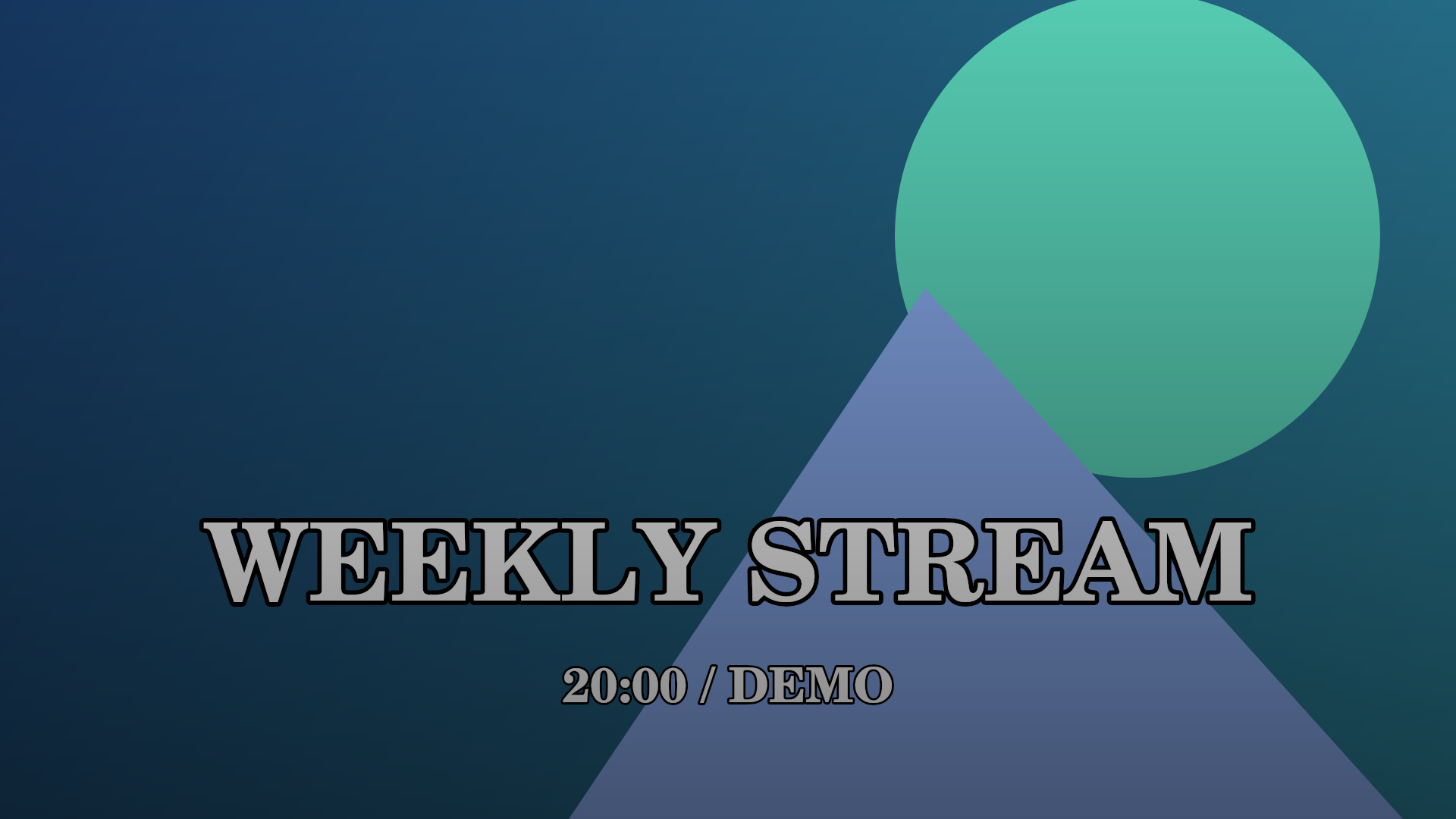
Finished image with text and shading
Source material
Source material

Frequently asked questions

Can I make the preview larger?

Choose Balanced, Larger preview or Larger controls in Workspace layout. Preview zoom ranges from 50% to 400%. Scroll inside the preview or turn on Pan view to move around, and use Fit view to reset. Display settings do not change the exported image size.

Can I build a template before adding images?

Choose image frame ratios in Layers, then arrange and duplicate the dashed frames and save them in Templates. Fill each frame later while keeping its position and size. Before exporting a finished image, fill empty frames or delete those you do not need.

Which image formats are supported?

Import PNG, JPEG or WebP and export PNG or JPEG. For a transparent background, enable transparency in Canvas and save as PNG.

Do I need an account or an image upload?

The published thumbnail maker can be used without an account. Source images and editing data are handled locally and are not uploaded to a server.

Can I resume editing later?

Editing data is saved automatically in this browser. Save a project file as a backup before clearing browser data. Open it with the editing-data import in Templates.